
CRM calendar scheduling that stays connected to contact context
CRM Calendar: what it should help you do
If you are looking for a CRM calendar, the real goal is not just to place events on a grid. It is to keep meetings, tasks and follow-up connected to the contact record, so planning stays useful before, during and after the event.
Plan with clear views
Use month, week, day and list views to see workload, appointments and upcoming follow-up in the same workspace.
Reschedule without losing context
Move items fast and keep the same participants, notes, links and files attached to the event.
Keep event details together
Store location, meeting link, description, color and related documents in one place instead of splitting them across tools.
Turn meetings into follow-up
After the event, continue from the same CRM context with reminders, tasks and next steps.
What changes when calendar and contacts live in the same CRM
A CRM calendar is not only for dates. It keeps meetings, tasks and follow-up tied to the contact record they belong to.
- Context stays with the event: participants, notes, location, links and files do not live in separate tools.
- Rescheduling is faster: move meetings or tasks without rebuilding the appointment from scratch.
- Follow-up becomes traceable: once the meeting ends, the next step still belongs to the same CRM workflow.
What to look for in a CRM calendar
The most useful CRM calendar is not the one with the most buttons. It is the one that helps teams plan, move and follow up while keeping contact context intact.
Month, week, day and list views
See the agenda from high-level planning down to daily execution without leaving the CRM calendar.
Drag-and-drop rescheduling
Update dates and times quickly when plans change, without recreating the appointment.
Event details in one place
Keep location, meeting link, description, color and attachments together inside the event.
Participants linked to contacts
Manage attendees from CRM contacts instead of re-entering details every time you create a meeting.
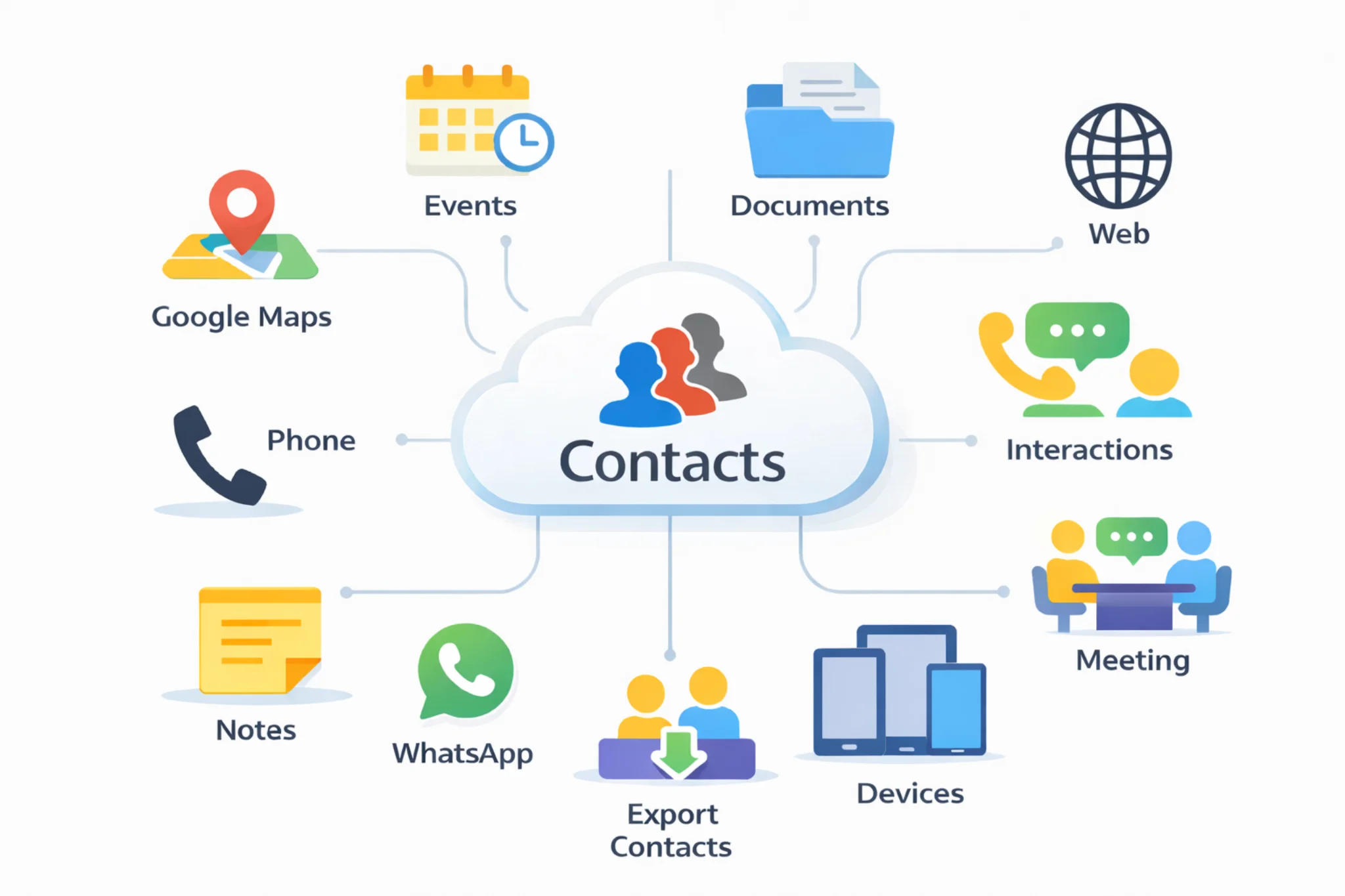
Common CRM calendar use cases
Client meetings, renewals, site visits, internal handoffs and follow-up tasks are easier to manage when the calendar stays tied to the contact workflow.
You can also add a Google Meet, Microsoft Teams or Zoom link and launch the meeting directly from the event.
Explore: Cloud contacts CRM | CRM document management | Follow-up reminders | Pricing | Export contacts from Excel to a CRM | Google and Outlook contacts in one CRM | CRM vs spreadsheets
How teams use a CRM calendar in daily work
A practical CRM calendar workflow usually looks like this.
1. Create the event from the right context
Start from the contact or the calendar and create the meeting, task or event with the right customer context from the beginning.
2. Add participants, location, link and notes
Include who is involved, where it happens, how to join online and any notes the team needs before the appointment.
3. Reschedule quickly when plans move
Drag and drop or update the time without losing the relationship between the event and the CRM record.
4. Continue with next steps after the event
Use the same CRM context for reminders, follow-up actions, documents and pending tasks once the meeting is over.
Frequently asked questions about CRM calendars
Quick answers about CRM calendar scheduling, contact context and follow-up.
A CRM calendar keeps meetings, tasks and events linked to the contact record they belong to. That gives each appointment its participants, notes, links, location and related context in the same place.
Useful CRM calendar features usually include month, week, day and list views, fast rescheduling, meeting details, participant management and a clear link back to the contact record.
Yes. That is one of the main reasons to use a CRM calendar. Meetings, tasks and follow-up can stay connected to the customer or company they belong to instead of sitting in a separate calendar.
Yes. When the calendar is inside the CRM, moving an event does not remove participants, notes, files, links or related follow-up from the same record.
Yes. You can store meeting links inside the event and launch Google Meet, Microsoft Teams or Zoom directly from the CRM calendar.
A CRM calendar becomes more useful when meetings, tasks and follow-up need to stay connected to contact data, notes, documents and next actions instead of being managed in separate tools.