
Your contact information across devices
Access your CRM records from supported web, mobile and desktop applications. Check the current platform options before installing.
Bring your contacts into a shared online workspace and work from supported devices. Understand what each import option does and how it differs from synchronization.
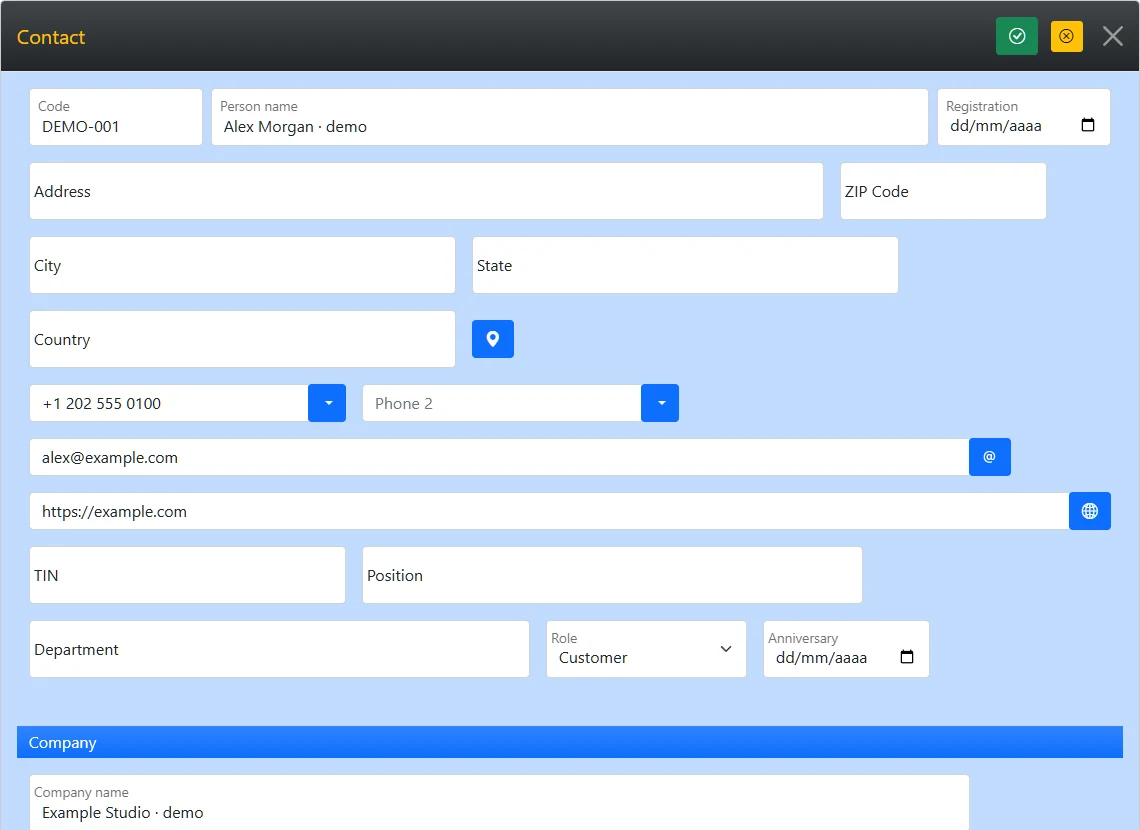
A cloud contact CRM stores your contact information online so authorized users can access the same workspace from supported devices. My Contacts Cloud keeps contacts, interactions, documents, meetings and follow-up in that workspace.
Importing brings data into the CRM. It is a separate operation from maintaining automatic two-way synchronization with the original address book.
Choose the import option for Google or Microsoft and review the contacts available for selection. Authorizing access to a provider and importing contacts are separate from signing in to the CRM.
Use the supported Apple address-book access in the relevant application. Availability and permissions depend on the device and platform.
Select a .xlsx file in the Excel import form and map its columns. Save CSV files as .xlsx first. The importer reads the first worksheet. Its field mapping form differs from the contact selection offered by provider imports.
Check a small batch and the duplicate rules before importing the remainder. Imports use the workspace’s available contact capacity.
Access your CRM records from supported web, mobile and desktop applications. Check the current platform options before installing.
Owners and members use the shared workspace. Every user needs a verified email address; a contact record is not a login account.
When the team updates a record in the workspace, you can refer to that CRM record as you continue working with the contact.
Keep interactions, reminders and meeting details available for whoever follows up next.
Import support does not by itself mean that later changes in Google, Microsoft or Apple contacts are continuously copied into the CRM, or that CRM edits are written back to the source. Check the specific workflow before relying on external synchronization.
Contact import, provider sign-in and authorized email sending are distinct operations. Similarly, saving meeting access details in an event does not create a two-way connection to an external calendar.
The CRM’s data is stored online, where authorized users can access it from supported devices.
No. Importing data is different from continuously synchronizing it with the source address book. Check the specific provider workflow before relying on synchronization.
No. Provider imports have their own contact selection. For Excel, you select a workbook and map its columns to contact fields.
Save the CSV as .xlsx first, keep the contact data on the first worksheet and map the columns in the import form.
Yes. Authorized owners and members work in the shared workspace. All users need a verified email address.
See the page about the same contact across web, mobile and desktop, and the official application links on the website.
Try My Contacts Cloud for 10 days with all features included. No credit card required.